
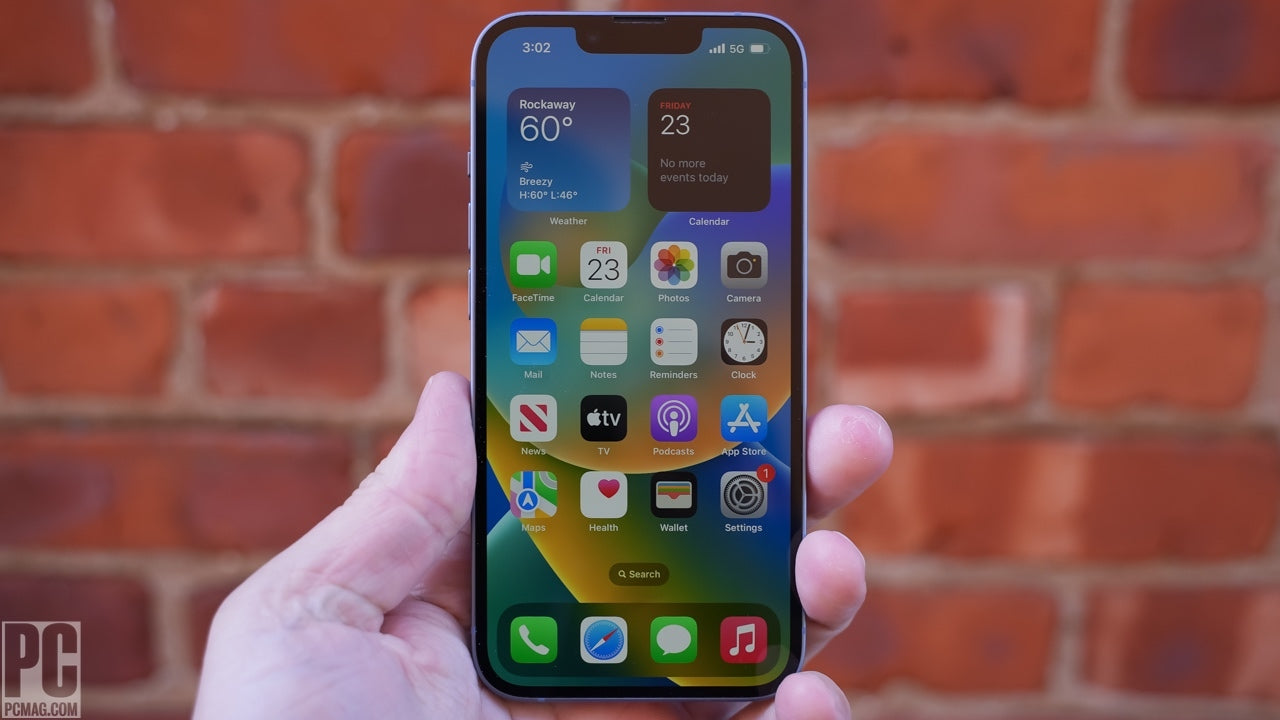
How to Freeze Your Location on iPhone? You need to stop sharing your real-time location with someone but don't want them to know you turned it off, or maybe you just want to keep your location showing your house while you're actually somewhere else. Learning how to freeze your location on iphone isn't about doing anything sketchy – sometimes you just need privacy without the drama of someone asking why you disabled location sharing.
Why People Want to Freeze Their Location
Look, there are tons of legitimate reasons to freeze your iPhone location without completely turning off location services. Maybe you're planning a surprise party and don't want your partner seeing you at the venue, or maybe you just don't want your boss knowing exactly when you left the office on Friday afternoon.
The thing is, Apple doesn't actually have a built-in "freeze location" button because they didn't design iOS with that specific use case in mind. But that doesn't mean it's impossible – there are several workarounds that can accomplish basically the same thing.
Understanding How Location Sharing Actually Works
Before we get into how to freeze your location on iphone, you gotta understand how iOS handles location data. Your iPhone constantly pings GPS satellites, cell towers, and WiFi networks to figure out where you are, and apps like Find My use that data to show your real-time location to people you're sharing with.
When you share your location with someone through Find My or iMessage, your phone continuously updates that location in the background. That's why someone can open Find My and see you driving down the highway in real-time – your phone is constantly broadcasting your position.
Method 1: Airplane Mode (The Simple But Obvious Way)
The easiest way to freeze your location is just turning on Airplane Mode. When Airplane Mode is on, your phone can't communicate with anything – no cell service, no WiFi, no GPS updates going anywhere.
The problem is that this method is super obvious to anyone checking your location because you'll show your last known location with a timestamp that says when you were last seen. If someone's checking on you regularly, they'll definitely notice that your location froze three hours ago and hasn't moved.
Method 2: Turn Off Location Services Completely
You can go into Settings > Privacy & Security > Location Services and just turn the whole thing off. This stops all location tracking immediately and freezes your location at wherever you were when you disabled it.
But again, this is pretty obvious because your location will show as old data, and if someone tries to request your location through Find My, you'll show up as "Location Not Available." Not exactly subtle if you're trying to avoid questions about why you're not sharing anymore.
Method 3: Stop Sharing with Specific People
Here's a slightly better approach: open Find My, go to the People tab, select the person you want to stop sharing with, and tap "Stop Sharing My Location." This removes you from their Find My completely, but it's still obvious because you literally disappear from their list.
If someone's used to checking your location regularly and you suddenly vanish, they're gonna notice and probably text you asking what's up. Understanding how to freeze your location on iphone means knowing which methods are subtle and which ones basically announce what you're doing.
Method 4: Use Another Device for Find My
Here's a clever workaround that actually works pretty well: you can set a different device as your location source for Find My. Go to Find My > Me > Use This iPhone as My Location, and switch it to another device like an iPad or Apple Watch.
If you leave that other device at home or wherever you want your location to appear, people will see you there even though you're actually somewhere else with your iPhone. The downside is you need another Apple device to make this work, which not everyone has lying around.
Method 5: Turn Off Share My Location in iMessage
There's a specific setting in iMessage for location sharing that's separate from Find My. Go to Messages > your conversation > tap the contact name at the top > Info, and you can toggle off "Share My Location" just for that specific conversation.
This stops sharing your location through iMessage specifically but doesn't affect Find My sharing. It's useful if you're only sharing location through text messages and want to freeze it there without affecting other apps or people.
Method 6: The WiFi/Cellular Toggle Trick
Here's something that works sometimes: turn off both WiFi and Cellular Data but keep your phone otherwise functional. Your phone can't update your location without internet connectivity, so it'll stay frozen at your last position.
The catch is that you also can't use most of your phone's features without internet, which kinda defeats the purpose if you actually need to use your device. Plus, like Airplane Mode, it's obvious when your location stops updating, so people will probably figure out something's up.
Method 7: Disable Background App Refresh for Find My
You can stop Find My from updating in the background by going to Settings > General > Background App Refresh, then turning it off specifically for Find My. This prevents the app from constantly updating your location when it's not actively open.
However, iOS is smart enough that Find My might still update when someone actively checks your location, so this isn't foolproof. It can slow down location updates but won't completely freeze your location the way you might want.
The Reality About Third-Party Apps
If you search online for how to freeze your location on iphone, you'll find tons of third-party apps claiming they can spoof or freeze your location. Some of these actually work, but most require jailbreaking your iPhone, which opens up a whole can of security worms.
Jailbreaking voids your warranty, makes your phone vulnerable to malware, and prevents you from getting iOS updates. Unless you really know what you're doing and accept the risks, jailbreaking just to freeze your location probably isn't worth it.
Location Spoofing Software for Computers
There are computer programs like iTools or AnyTo that can spoof your iPhone's location when it's connected to your PC or Mac. These tools basically trick your phone into thinking it's somewhere else by feeding it fake GPS coordinates.
The problem is your phone needs to stay connected to your computer for this to work, which obviously isn't practical if you're trying to move around freely. Plus, some of these programs cost money and might not even work with the latest iOS versions.
What About Developer Mode Location Simulation?
If you enable Developer Mode on your iPhone, you can simulate locations, but this feature is really designed for app developers testing location-based features. It's complicated to set up and not really intended for everyday use by regular people.
Plus, apps can actually detect when your location is being simulated through Developer Mode, so it might not work for Find My or other location sharing anyway. It's more trouble than it's worth for most people trying to figure out how to freeze your location on iphone for normal privacy reasons.
The "Lost iPhone" Workaround Some People Try
Some folks put their phone in Lost Mode through Find My, thinking this will freeze their location. In reality, Lost Mode actually makes your location MORE visible because it's designed to help you find a missing device.
This is the opposite of what you want if you're trying to maintain privacy. Lost Mode broadcasts your location constantly and displays a message on your lock screen, so definitely don't try this method.
Understanding the Legal and Ethical Side
Before we go further, let's talk about the elephant in the room: why you want to freeze your location matters. If you're trying to hide your location from an abusive person or stalker, there are better resources and safety measures you should be using.
On the flip side, if you're trying to deceive someone you're in a relationship with or violate some agreement you made, that's a different ethical situation. Understanding how to freeze your location on iphone is one thing, but using it responsibly is another.
When Your Employer Tracks Your Location
Some jobs require employees to use tracking apps on their work phones, and trying to freeze your location to fake being somewhere could get you fired. If you're using a company-owned iPhone with mobile device management (MDM) software, they can probably detect if you're messing with location services.
Be really careful about this one because employment agreements often specifically prohibit disabling or spoofing location tracking. Your desire for privacy doesn't override contractual obligations you agreed to when you took the job.
Parental Controls and Location Monitoring
Parents often use location sharing to keep tabs on their kids' whereabouts, and teenagers frequently search for how to freeze your location on iphone to avoid this monitoring. If you're under 18 and living with your parents, they have a legal right to monitor your location.
That said, if you're over 18 and your parents are still demanding location access, you're legally an adult and can make your own choices about privacy. The conversation about boundaries is probably more important than the technical workaround.
The Battery Drain Factor
Keeping your location frozen using methods like leaving another device at home as your location source means that device is constantly broadcasting location data. This drains battery faster than you'd expect, especially on older devices.
If you're using an old iPad as your location stand-in at home, make sure it's plugged in because the battery will die within a day or two if you're not careful. Nobody's gonna believe your location froze at home because your iPad died – that just raises more questions.
What Shows Up on the Other Person's End
When you freeze your location using most of these methods, the other person will see your last known location with a timestamp. Depending on how often they check, they might notice immediately that you're stuck in one spot for hours, or they might not notice for days.
Modern versions of Find My are pretty good about indicating when location data is stale, so there's usually some indication that the information isn't current. Understanding what the other person sees is crucial when figuring out how to freeze your location on iphone in a way that doesn't immediately raise suspicions.
The "Turn Off Find My Device" Option
You can completely turn off Find My Device in Settings > [Your Name] > Find My > Find My iPhone, but this is nuclear option territory. Not only does this stop location sharing, but it also disables all the features that help you locate your phone if you actually lose it.
Plus, if you have Activation Lock enabled (which you should), turning off Find My requires your Apple ID password, and someone with physical access to your phone will see you entered your password to disable tracking. This method basically announces "I'm hiding something."
The Risk of Getting Caught
Let's be brutally honest: most methods of freezing your location have a decent chance of being discovered eventually. Whether it's your location staying in one spot too long, someone calling you when you're supposedly home, or just inconsistencies in your story, there's always a risk.
If you're freezing your location to maintain reasonable privacy boundaries, that's fine, but if you're doing it to actively deceive someone, consider whether the relationship itself is the problem. Technology workarounds don't fix underlying trust issues or boundary violations.
Alternative: Just Have an Honest Conversation
Here's the thing nobody wants to hear: sometimes the best solution to how to freeze your location on iphone is not freezing your location at all. If you don't want to share your location with someone, you can just tell them that and stop sharing.
Yeah, it might be an uncomfortable conversation, especially with family or a partner, but it's way less complicated than maintaining elaborate technical workarounds. Setting boundaries directly is healthier than sneaking around, even if it feels harder in the moment.
Using Focus Modes to Your Advantage
iOS Focus modes don't directly freeze your location, but they can hide notifications that might give away where you actually are. If you're somewhere you don't want people knowing about, a Focus mode can silence notifications from apps that might reveal your location.
This doesn't freeze your location itself, but it's a good complementary strategy to avoid accidental reveals. For example, if you're supposedly working from home but you're actually at the beach, you don't want notification banners from beach-adjacent businesses popping up if someone's near your phone.
The VPN Misconception
Some people think using a VPN will freeze or hide their iPhone location, but that's not how VPNs work. A VPN masks your internet traffic and IP address, but it doesn't affect GPS-based location services at all.
Your iPhone determines location through GPS satellites and cell towers, which has nothing to do with your internet connection. So using a VPN won't help with Find My or any other location-sharing features, despite what some sketchy websites might claim.
What About Turning Off Precise Location?
iOS has a feature called Precise Location that you can disable per app in Settings > Privacy & Security > Location Services. When you turn off Precise Location, apps only get your approximate location instead of your exact coordinates.
However, this doesn't work for Find My – it still shows your exact location even if you disable Precise Location for other apps. So this won't help with freezing your location for people tracking you through Apple's ecosystem, though it can add some privacy from third-party apps.
Managing Location Sharing on Multiple Devices
If you own multiple Apple devices logged into the same Apple ID, they all share location data with each other by default. This can actually work to your advantage or against you depending on what you're trying to accomplish.
Like I mentioned earlier, you can designate which device broadcasts your location through Find My, which gives you some control. But understanding how to freeze your location on iphone when you have an iPad, Apple Watch, and MacBook all in the mix requires thinking about how they all interact with location services.
The Factory Reset Nuclear Option
Some desperate people factory reset their iPhones thinking this will permanently freeze their last known location. This doesn't work the way they think – a factory reset erases everything including your location sharing settings, so you'll just disappear entirely from Find My.
Plus, you lose all your data, need to set up your phone again from scratch, and the people tracking you will definitely notice you vanished completely. This is like trying to fix a leaky faucet by burning down your house – technically effective but completely impractical.
Screen Time Restrictions and Location
If you have Screen Time restrictions enabled (either self-imposed or by a parent), these might prevent you from changing location settings. You'll need the Screen Time passcode to modify location sharing in this case.
This is actually a deliberate design choice to prevent kids from disabling location tracking that their parents set up. If you're trying to figure out how to freeze your location on iphone and keep running into "This setting is managed by Screen Time," that's why.
The Truth About "Location Freezing Apps"
Any app in the App Store claiming it can freeze your iPhone location is either lying or using methods that violate Apple's terms of service. Apple doesn't allow apps to modify system-level location services in the way you'd need to actually freeze your location.
These apps either don't work at all, only work for their own internal location features, or are outright scams trying to steal your Apple ID credentials. Save your money and don't download them – they're not going to do what you want.
Temporary Solutions vs. Long-Term Privacy
Most methods for freezing your location are temporary workarounds, not long-term solutions. If you're in a situation where you need to hide your location indefinitely, the technical solutions are gonna fail eventually, and you need to address the underlying situation.
Whether that's ending a relationship, setting firmer boundaries with family, or finding a new job without tracking requirements, fixing the root cause is more sustainable than constantly fighting with technology. Technical tricks are just Band-Aids on bigger issues that need real solutions.
What Apple's Privacy Features Actually Do
Apple markets their privacy features heavily, but location sharing is one area where their tools are designed for transparency, not anonymity. Find My exists specifically so people can track each other's locations reliably, which is the opposite of privacy.
The privacy features Apple offers around location are more about controlling which apps can access your location, not about hiding from people you've explicitly chosen to share with. Understanding this helps clarify why how to freeze your location on iphone isn't straightforward – Apple didn't build iOS with that goal in mind.
Emergency Situations and Safety
If you're trying to hide your location because you're in danger – domestic violence, stalking, harassment – please reach out to local resources and authorities instead of just relying on technical tricks. Many organizations can help you safely disconnect from location tracking and protect yourself.
Freezing your location might buy you some time, but it's not a safety plan. If someone dangerous has access to your location, you need a comprehensive safety strategy that includes law enforcement, protective orders, and support services that specialize in these situations.
The Bottom Line on Location Privacy
There's no perfect, undetectable way to freeze your location on iPhone without any consequences or risks of being discovered. Every method has trade-offs, whether it's being obvious, requiring other devices, affecting functionality, or risking your data security.
The best approach to how to freeze your location on iphone depends entirely on your specific situation – who you're hiding from, why you need privacy, how tech-savvy they are, and what resources you have available. Think through what you're trying to accomplish and whether the technical solution matches the real problem you're facing.
Share:
How to Pause Location Tracking on iPhone for Privacy?
How to Switch Hearing Aids Between iPhone and iPad & Avoid Pairing Issues?