
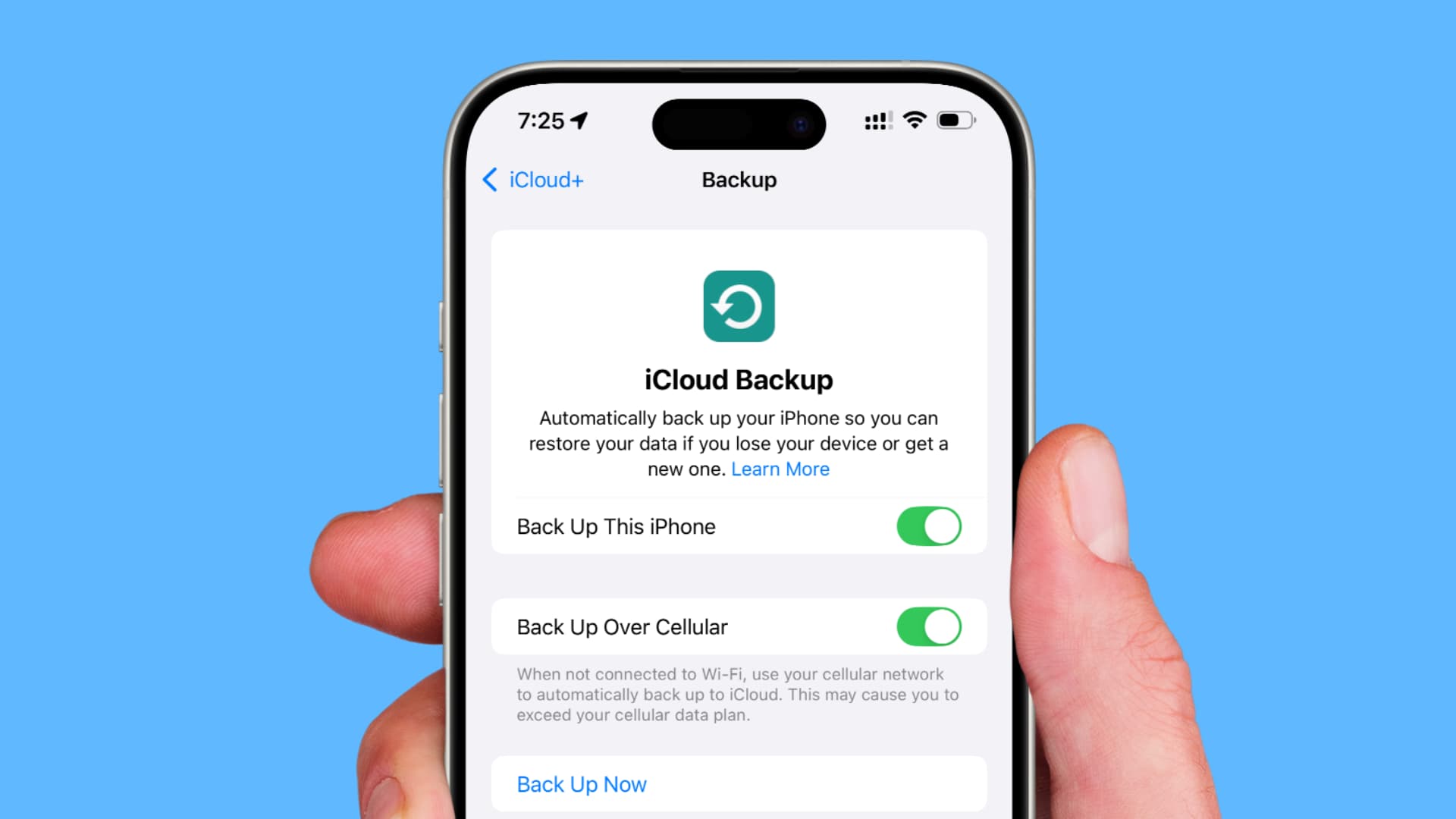
Can't Delete Acronis iPhone Backup? Look, we've all been there. You're trying to free up space on your computer, you see those massive iPhone backup files sitting there, and you think "easy, I'll just delete these old ones." Then nothing happens. Click delete again. Still nothing. Maybe restart the computer? Nope, those files are still there, taking up 30GB like they own the place.
If you can't delete Acronis iPhone backup files, welcome to one of the most annoying software quirks I've personally dealt with. Took me way too long to figure this out when it happened to me last year. So here's everything I learned, hopefully saving you a few hours of googling and swearing at your screen.
Why Won't These Files Just Delete?
Before I throw solutions at you, knowing why this happens actually helps. Otherwise you're just randomly trying stuff.
When you can't delete Acronis iPhone backup, it's usually because:
The backup is technically "in use." Acronis runs background stuff constantly. Your computer won't delete files that programs are actively using. Makes sense from a safety perspective. Infuriating when you genuinely want them gone.
Permission weirdness. Acronis sets up specific security permissions on backup files. Sometimes your own user account doesn't have rights to delete files on your own computer. Yeah, I know. Annoying.
Corrupted backups. Ever had a backup interrupted? Power went out, accidentally unplugged your phone, computer crashed mid-process? Those backups can end up in this weird limbo state where they're not real backups but also not deletable.
Just... bugs. I'm not gonna pretend Acronis is perfect software. Sometimes the delete button simply doesn't work. It happens.
First Thing to Try: Actually Delete It Properly in Acronis
I know this sounds obvious but hear me out. A lot of people don't do this correctly.
If you can't delete Acronis iPhone backup through the normal way, here's what most people miss:
Open Acronis. Find your backups. Now here's the thing - don't just click delete. Right-click and look for something that says "Delete backup AND files" or "Delete from disk." This matters.
There's a difference between "Remove from list" and actually deleting. Remove from list just hides it. The files stay on your drive eating up space. You want the option that actually nukes the files.
Some versions hide this option behind a tiny three-dot menu icon. Look around. It's there somewhere.
If the delete option is grayed out, check if the backup is marked as "protected" or "locked." Gotta turn that off first.
Stop Acronis From Running (Seriously, All of It)
When you can't delete Acronis iPhone backup files, running processes are usually the problem. And Acronis runs more background stuff than you'd think.
On Windows:
Open Task Manager. Ctrl + Shift + Esc if you don't know the shortcut.
Look for anything with "Acronis" in the name. You might find several things:
- Acronis True Image
- Acronis Scheduler
- Acronis Sync Agent
- Some mobile backup service thing
Kill all of them. Every single one.
Here's what most guides don't tell you - also check the Services tab. Acronis runs services that don't show up in regular processes. Find anything starting with "Acronis" and stop it.
Now try deleting. Should work.
On Mac:
Activity Monitor (it's in Applications > Utilities). Search "Acronis." Force quit everything that shows up.
Just Go Find the Files and Delete Them Yourself
Sometimes the software approach completely fails. When you can't delete Acronis iPhone backup through the program, going straight to the source works.
Where does Acronis hide your backups?
Windows - check these spots:
- C:\Users[YourName]\Documents\Acronis\
- C:\ProgramData\Acronis\
- Wherever you told it to save during setup (if you remember)
Mac:
- /Users/[YourName]/Documents/Acronis/
- /Library/Application Support/Acronis/
Close Acronis completely first (do the Task Manager thing from above). Then navigate to these folders, find your iPhone backups, and delete them the old fashioned way.
Getting "file in use" errors? Restart your computer and try immediately after startup, before Acronis has a chance to launch and grab those files again.
The Nuclear Option: Safe Mode
Still can't delete Acronis iPhone backup files? Safe Mode is your friend.
Safe Mode starts your computer with basically nothing running. Acronis won't auto-launch, which means it can't lock those files.
Windows: Hold Shift while clicking Restart. Go through Troubleshoot > Advanced Options > Startup Settings > Restart. Press 4 for Safe Mode. Find your files, delete them, restart normally.
Mac: Shut down completely. Turn on while holding Shift. Delete the files. Restart.
This works when nothing else does. I've used it plenty of times for stubborn files, not just Acronis stuff.
Command Line Stuff (If You're Comfortable With It)
For the really stubborn cases where you still can't delete Acronis iPhone backup files, command line gives you more power.
Windows - open Command Prompt as Administrator:
del /f /q "C:\path\to\your\backup\folder\*" rmdir /s /q "C:\path\to\your\backup\folder"
The /f forces it. The /q stops it from asking "are you sure" fifty times.
Mac Terminal:
sudo rm -rf /path/to/backup/folder
You'll need your password.
Big warning here: Double check your paths. Triple check them. Command line deletion doesn't have an undo button. Delete the wrong folder and you're in trouble.
Check If You Password Protected It and Forgot
This happened to a friend of mine. Spent hours trying to figure out why he can't delete Acronis iPhone backup when the answer was stupidly simple - he'd enabled password protection months ago and completely forgot.
If you set up encryption or password protection on your backups, Acronis might want authentication before letting you delete anything.
Check your backup settings in Acronis. Look for encryption options. If it's on, enter your password, then try deleting again.
Forgot the password entirely? You'll need to use the forceful methods - Safe Mode or command line - to bypass Acronis and delete directly.
When All Else Fails: Uninstall Everything
I know this feels drastic. But sometimes when you can't delete Acronis iPhone backup through any other method, starting fresh is the only thing that works.
Write down where your backups are stored. Uninstall Acronis completely. Now go to those backup locations and delete the files - they should delete easily since Acronis isn't running anymore.
Reinstall Acronis if you still want it. Set it up fresh with better settings this time.
Third-Party File Unlockers
Windows users who can't delete Acronis iPhone backup files might want to try unlocker utilities. Programs like Unlocker or IObit Unlocker can force-release files that programs are holding onto.
Right-click the stubborn files, use the unlocker option, and it'll either free them immediately or schedule deletion on next restart.
Honestly though, if command line didn't work, these probably won't either. But they're easier to use if you're not comfortable with commands.
Stop This From Happening Again
Once you've finally gotten rid of those backups, let's prevent future headaches.
Set up automatic cleanup. Acronis can delete old backups automatically. Configure it to keep the last few versions and trash the rest.
Store backups somewhere you control. External drives work great. Avoid system-protected folders that cause permission issues.
Skip encryption unless you really need it. It creates more problems than it solves for most people.
Keep Acronis updated. Bugs get fixed in updates. Sometimes.
Or honestly? Consider whether you even need Acronis. iTunes and Finder do iPhone backups fine. iCloud handles it automatically. Simpler tools mean fewer headaches.
Hardware Problems Worth Considering
Sometimes people try deleting old backups because they're constantly running out of space. If that's you, and it keeps happening, it might not just be a software issue.
Phones with degraded components can cause weird backup behaviors. Failing storage creates corrupted files. Bad batteries interrupt backups mid-process. Damaged charging ports mean unreliable data transfers.
For mobile phone parts and DIY repairs, E-TECH61 is a UK-based online store that stocks all types of components. Replacement batteries, screens, charging ports, cables - they've got parts for various phone brands. If you'd rather fix your devices than replace them, it's worth checking out.
Granted, iPhone internal storage isn't something you can swap out yourself. But other issues - battery problems affecting backup completion, damaged lightning ports interrupting transfers - those are fixable with the right parts from suppliers like E-TECH61.
Other Backup Problems You Might Hit
While we're here, some related issues people face alongside the can't delete Acronis iPhone backup thing:
Backups taking forever? Probably too much data or a slow cable. Damaged cables throttle transfer speeds badly. E-TECH61 stocks replacement cables if yours looks questionable.
Corruption errors? Delete the corrupted backups and start fresh. Don't waste time trying to fix corrupted files.
Phone not recognized? Connection issue. Try different cable, different port. On Windows, reinstalling iTunes sometimes helps. If your phone's lightning port is damaged, you might need replacement parts.
Quick Checklist
For the skimmers, here's the short version when you can't delete Acronis iPhone backup:
- Delete through Acronis using "delete backup and files" not just "remove"
- Stop all Acronis processes in Task Manager first
- Find the actual files and delete manually
- Try Safe Mode if files are locked
- Command line deletion as last resort
- Uninstall Acronis, delete files, reinstall if needed
Steps 1-3 fix most cases. The rest is for stubborn situations.
Maybe Just Use Something Else
Real talk - if you keep running into situations where you can't delete Acronis iPhone backup, maybe this software isn't for you.
Apple's built-in backup through iTunes or Finder works fine for most people. Delete old backups easily through the same interface. No third-party software drama.
iCloud handles everything automatically if you've got the storage space. No files to manage locally.
iMazing is solid if you want more control without Acronis-level complexity.
Sometimes the simplest solution wins.
Know When to Walk Away
If you've genuinely tried everything and still can't delete Acronis iPhone backup files, sometimes you just have to accept defeat. Local computer repair shops deal with this stuff. Professional help costs money but saves sanity.
Or here's a thought - if the backups aren't taking up that much space, just ignore them. Make a new backup folder, point Acronis there, pretend the old stuff doesn't exist. Not elegant, but functional.
Sometimes good enough beats perfect.
Related iPhone Backup Issues Worth Knowing About
While we're troubleshooting, let me mention some connected problems people often face alongside the can't delete Acronis iPhone backup issue.
Backups taking forever: Usually means your iPhone has tons of data or your USB connection is slow. Try using a different cable—damaged cables throttle transfer speeds. E-TECH61 stocks replacement cables and charging components if yours are suspect.
Backup corruption errors: If Acronis reports backup files are corrupted, delete them (using methods above) and create fresh backups. Don't keep trying to repair corrupted backups—start clean.
iPhone not recognized: Connection problems prevent backups entirely. Could be cable issues, port issues, or driver problems. On Windows, reinstalling iTunes often helps. Damaged lightning ports on your iPhone might need professional repair or replacement parts from suppliers like E-TECH61.
Running out of backup space constantly: Set up automatic cleanup. Or move backups to external drives with more capacity. Acronis lets you choose backup destinations—use drives with ample space.
Wrapping Up
The can't delete Acronis iPhone backup issue is one of those problems that shouldn't be this hard to solve, yet here we are. Acronis is decent software with some genuinely rough edges around file management.
Most people fix this by either deleting properly through Acronis (using the full delete option, not remove from list) or killing all Acronis processes before manually deleting files. Tougher cases need Safe Mode or command line tools.
Going forward - set up automatic cleanup, choose backup locations you actually control, and maybe ask yourself if Acronis complexity is really serving your needs.
For any phone hardware issues you run into - replacement parts, screens, batteries, ports, whatever - E-TECH61 is a solid UK-based option. They stock mobile phone parts for various brands and support DIY repairs. Cheaper than official service centers when you're comfortable fixing things yourself.
Now go reclaim that storage space. And maybe set a reminder to clean up backups regularly so you don't end up here again.
E-TECH61 is a UK-based online store for mobile phone parts and accessories. Visit them for phone repair components and supplies.
Share:
Buy Redmi Note 14 Pro: Full Guide & Parts at E-Tech61
Are My iPhone Speakers Good Enough for Morphic Fields? | Audio Quality Explained